Rehearse a Presentation Remote From the Back Row
Check the remote, receiver, screen, and presenter notes in a small rehearsal that includes recovery from two common button mistakes.
In this article
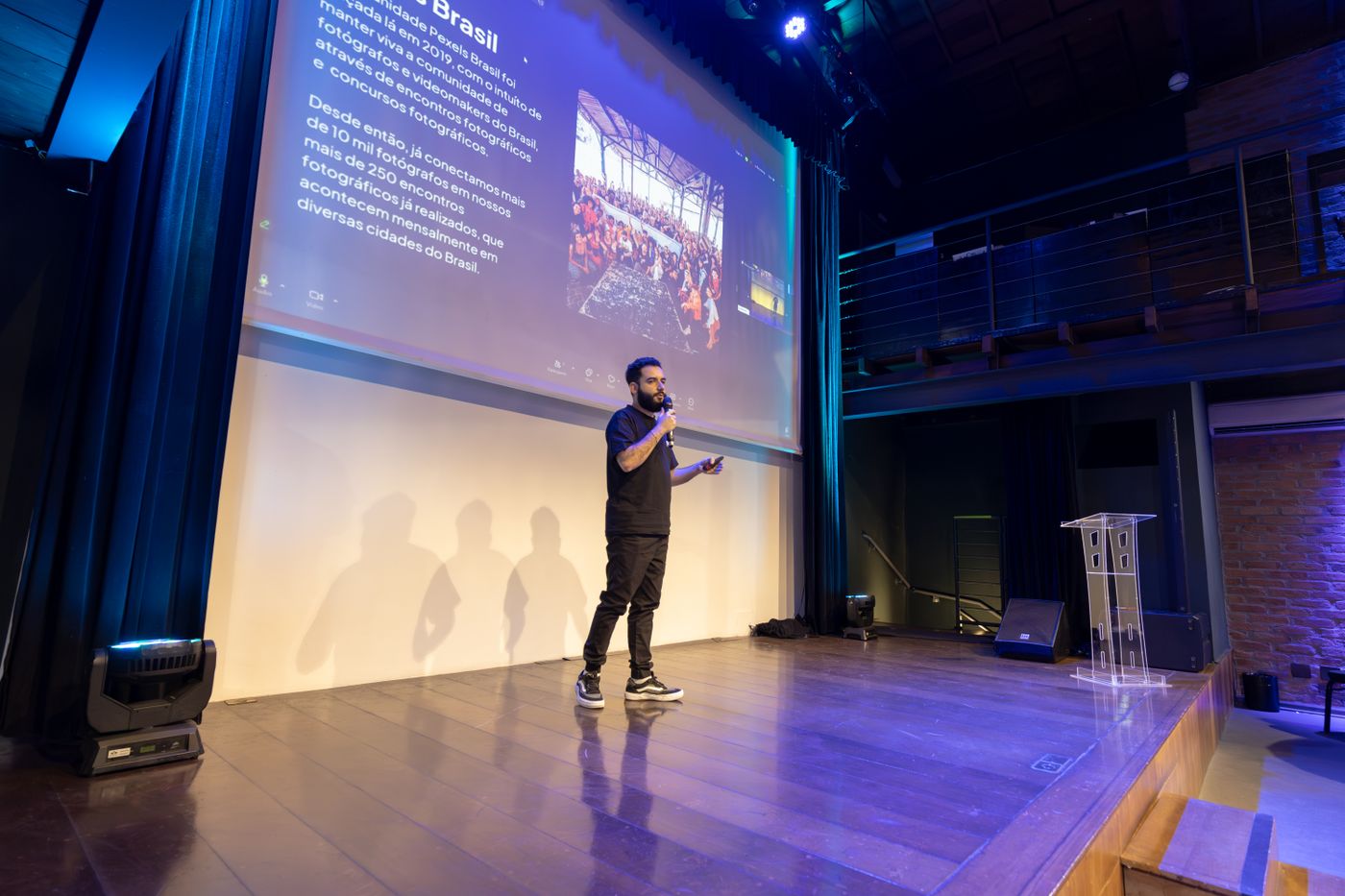
During a rehearsal the remote advances every slide from the table beside the computer. In front of the room, it advances nothing. The receiver is somewhere in a dock behind the lectern, the presentation window is no longer active, and the screen is showing a cursor moving around a page nobody can see clearly. There was a successful remote test. It solved the wrong half of the problem.
The remote is one link between the action a speaker makes and the image an audience sees. A useful rehearsal starts at the place you will stand, checks what happens to both screens, and includes a way back from an ordinary mistake. It does not require rehearsing the entire talk. Six test slides and another person in the room can reveal whether the arrangement is dependable and which tasks should be handled by someone at the computer.
Make six slides that report back clearly
Use a separate practice presentation if the real one contains material you are not ready to display. Label the first few slides with large numbers and a short phrase. Put a single animation on one slide if the real talk uses one, and include a sample of a video or special view only if you will depend on it. From across a room, a large numeral makes it obvious whether a press advanced the slide or whether a small animated part of a slide changed. The first task is knowing exactly which result you are looking at.
Try starting at a slide in the middle. Many rehearsals initially use the first slide and never test how to resume after a pause. Choose slide three, stop the presentation normally, and see how your software resumes. Record the supported way to return to the intended point. You do not have to memorize every keyboard shortcut, but the speaker and a helper should agree on what “back to three” means if the audience is already waiting.
Decide which display belongs to the audience and which belongs to the presenter. If you use notes, verify what the room can see, especially where more than one display or a projected feed is involved. Do not assume that a view marked “Presenter” on the computer tells you what the audience sees. Ask someone in the room to confirm it. A correct advanced slide can still be sent to the wrong display. Treat view selection and remote input as separate checks.
Find out how the remote sends its commands
Identify what your remote needs. It may use a small receiver, a supported wireless pairing method, or a device-specific connection. Follow its instructions and learn the normal indication of connection or battery state. If there is a receiver, give it a consistent place in the kit. When several people have similar receivers, label yours in a way that does not block its connection. A quick recovery depends on finding the right piece, not simply any small plug.
Try the buttons on a harmless practice slide. Use the forward button once, the backward button once, and any blank-screen or pause action you intend to use. Some remotes send commands equivalent to ordinary keyboard input, and the active application determines what those commands do. A click that advances a slideshow when it is active could scroll a document when focus is elsewhere. Test the real operating pattern, including the application and view in which you will use it.
Keep optional functions out of the first run. If the remote has a pointer, blanking button, timer, or other control, learn which ones are necessary for the talk. Use the equipment according to the venue rules and manufacturer instructions. A visible on-slide marker or a short verbal cue can serve many presentations without any separate pointing device. The smaller the set of buttons you need, the easier it is to keep looking toward the audience while operating the remote.
Walk the positions you will actually use
Start at the lectern and ask the helper to announce the displayed slide after each press. Move to the other side of the normal speaking area and repeat. If you plan to take questions from elsewhere in the room, test that location as well where it is practical and permitted. The layout, audience, and placement of the receiving equipment can affect behavior, and an empty-room rehearsal can give only limited evidence. Test enough ordinary positions to know where the remote was dependable.
Put the laptop and any receiver where they will be during the talk. A receiver plugged into the front of a computer on a bare table may work differently from the same arrangement behind furniture. Follow the venue's connectivity practice and avoid improvising in a way that blocks a walkway, vent, or other equipment. If a receiver needs a different appropriate port or extension, arrange it before the room is occupied and test the actual combination. Keeping the successful equipment position is part of making the test count.
Notice response rather than repeatedly pressing. Give the screen time to show what happened after one click. If the command did not arrive, check whether the presentation remains in the correct view before clicking again. Several delayed or repeated commands can carry you past the intended slide just as the display catches up. Ask the helper whether the screen remained on the same slide, showed the animation, or advanced. Their short report makes the next attempt less speculative.
Practice recovery from ordinary mistakes
Start by advancing one slide too far. Learn a simple recovery that still looks deliberate. A single known backward action works if the talk is a straight sequence and the previous slide is the actual destination. If there are animation steps or a different slide order, try the exact sequence in rehearsal. Returning to a slide may also reset its animation, depending on the software and presentation settings. Make sure the recovery leaves the audience looking at the material you mean to discuss.
Next make the presentation window lose focus safely in the practice file, perhaps by letting the designated operator switch to another application for a moment. Try returning to the presentation and resuming from an agreed slide. This teaches you to recognize the difference between a missing connection and a computer that is listening to the wrong window. If a helper will be available, agree how the speaker asks for the presentation window or one specific slide without guessing at the equipment from the stage.
Try a low-tech fallback. Give a helper a copy of the running order with page numbers or distinctive titles. The speaker can say a cue or use a before-agreed gesture after confirming it with the team. If the remote stops, a person at the computer can advance in a predictable way. If nobody else will be present, choose a practical route to the controls that does not require rushing or crossing cables. This fallback should be a normal part of the arrangement, not a punishment for unreliable hardware.
If the room has a different computer than the one you tested, repeat the first numbered slides there. Use the permitted connection method for that machine and let the designated operator make any necessary changes. A successful rehearsal on another laptop tells you what the remote can do. The final check tells you whether today's room is ready to do it. If you only have one minute, verify the first slide, one press from your intended position, and the handoff to the operator. Those are the observations you cannot recover from the equipment specifications.
Leave the room ready for the real file
Open the actual presentation before people arrive when you are authorized to show it. Confirm the first intended slide and check the notes view from the audience side. Use only material you are ready to place on the room display. Put any unrelated windows away before the talk. A saved local copy or another supported file format can help when the presentation ordinarily opens from a network. Rehearse the chosen copy if layout, media, or animations matter. A fallback without the needed media does not cover a talk that depends on it.
Rest the remote in a consistent place and check its supported battery indicator before the session. Avoid solving every issue at the last moment by changing operating system settings you cannot explain afterward. The settings that mattered should be few: the correct display, the active presentation, and the connection that succeeded when you stood where you will speak. Write those down if another person manages the room. Include the ordinary recovery action and the cue for the next slide.
A remote has passed when one press makes one intended change, from a position you actually use, and when the speaker and helper both know what to do if it does not. The most reassuring part of the test may be the moment when you stop relying on the remote entirely, advance one slide with a backup action, and return to the talk without breaking its rhythm.