Place a Webcam Where It Can Stay Put
Fit a webcam around the screen, cable, and ordinary working posture so the next call starts with the same usable picture as the rehearsal.
In this article
The camera was framed well at nine. At ten you opened the laptop lid farther to read a small chart. The image dipped, the edge of the screen entered the frame, and someone on the call could now see more ceiling than face. There was nothing wrong with the image sensor. The camera was attached to something you regularly move.
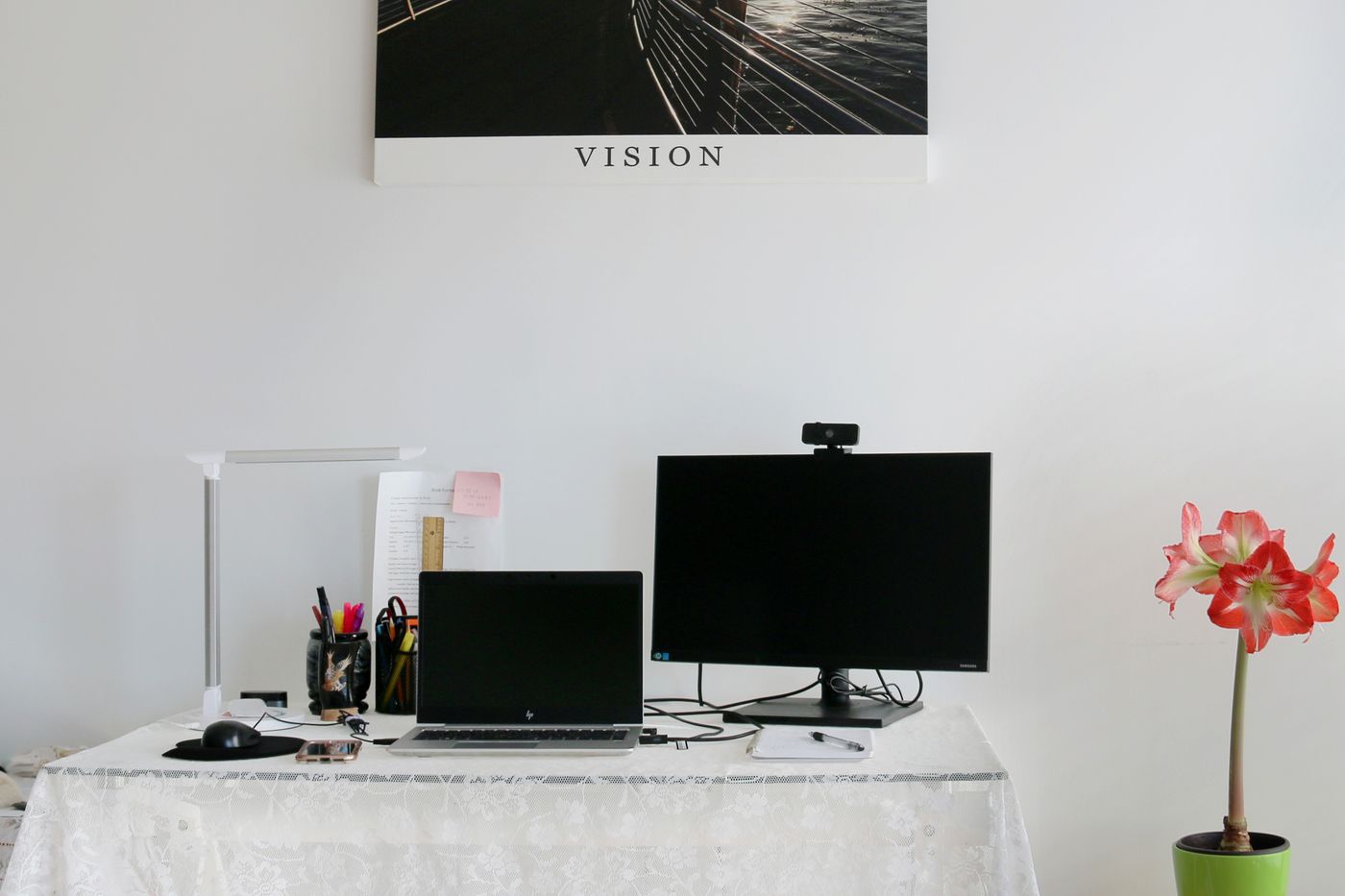
A webcam earns its spot when a useful frame survives an ordinary day. That involves more than deciding which edge of a display is closest to eye level. The mount must fit the actual screen, the cable must be able to move or stay put as required, and the working view must remain comfortable while you look at other material. You can test all of that before buying another accessory or rearranging a room.
Begin with where the work happens
Sit in the position you normally use. Turn on a local preview in the camera or meeting application, without joining a live meeting. Look at the preview while reading from the display rather than staring directly into the lens. A camera position that looks balanced while you face it can feel disconnected if the working window sits far to one side. You can sometimes improve the recording by placing the work near the camera within a large screen. You do not need to move a display or buy a mount to try that.
Check the height when you sit naturally. If the camera is much lower, the picture may emphasize the near side of the desk or an angle you do not prefer. A position much higher may require you to look up to connect with the person watching, or it can pick up an area behind you that you did not expect. The useful height depends on posture, screen size, and the work you are doing. Try an example from the position you can maintain through a normal call rather than sitting unnaturally straight for a sample image.
Mark what needs to stay visible. For one person it can be face and shoulders. For a tutor, a small part of the table might need to remain in view. If you frequently present a document, decide whether the document belongs in camera view or is better shared using the application's supported controls. A wide enough image can show necessary context, but it can also disclose personal or distracting material behind you. Check the corners from the preview rather than relying on how the room looks from the chair.
Check the mounting surface and its normal movement
Use mounting methods the manufacturer allows. A clip suited to a thicker monitor may not sit securely on a thin panel or on a screen with an irregular back. Inspect where the mount contacts the frame and whether it interferes with display controls, vents, or a built-in sensor. Avoid putting pressure on the active glass or forcing a clip to fit. A stand can be more useful than a nominally universal clip if the display routinely moves at the wrong moment.
Move the display as you normally would. Open and adjust the laptop lid within its supported range, or tilt an external screen through a small ordinary movement. Look at the camera framing before and after. A monitor on an arm can move enough to change the camera's angle even if it feels stationary once set. If you frequently switch the display between two people, check each position. A simple independent stand can make the camera framing depend on one stable object instead of every repositioning of the screen.
Place any stand where it is steady and permitted, without building a precarious stack of objects. Check that you can reach the desk and ordinary controls without touching it. An elegant stand that occupies the one place your hand goes to find the keyboard every morning will need constant resetting. For a small desk, the right location might be slightly farther from the camera position you first imagined and much easier to maintain.
Give the cable room to do its own job
Trace the cable to the connection you intend to use. Keep enough slack for the normal movement of the camera or screen and route it away from the parts of the desk that catch it. Avoid creating a sharp bend at the plug or putting the cable under pressure. Follow the equipment's instructions about suitable connection and extension. A webcam that remains available only when a cable is pulled in one direction has failed its basic setup check, even if the image looks attractive on the preview.
Test after reorganizing the desk rather than assuming the view is established. Move the keyboard into its normal position, put the chair where another user leaves it, and set down the notebook or reference material you reach for during work. If you dock a laptop at the start of each day, use the actual connection path and test again after reconnecting. A webcam can appear as a separate input in the app and may need to be selected after a device change. Know how to verify which camera is active without broadcasting the check to a meeting.
If the camera has its own privacy cover or a supported physical switch, learn what the preview looks like when it is closed or inactive. Try opening it at the start of the rehearsal and returning it to the preferred state afterward. Avoid covering other sensors or detection areas by accident. Give ordinary power, connection, and camera selection separate checks. A black preview can result from several things. A known order reduces the temptation to change unrelated settings until the picture comes back.
Fit light and crop around the same position
Look at the scene in the lighting you usually work in. A large bright window behind the chair can reduce the usefulness of the image even when framing never moves. Try a small adjustment to where the desk light falls, keeping ordinary working surfaces well lit. Put the preview next to the application with your work, and see whether you can read both. Aim for a view clear enough for the intended call rather than a studio arrangement that makes ordinary work awkward.
Check the widest view the camera or app can show. Some software has framing, cropping, or background controls that can alter what people see. Inspect the boundaries in the conditions where you would use them. A narrow view for one seated person may not include somebody else who normally shares the table. An automatic adjustment can also show different surroundings if you lean across for a reference. A physically tidy boundary often makes the result less dependent on the most favorable setting.
Set aside a separate view for special work if needed. A tutor who shows an object on a desk can use a supported secondary view or a deliberate change in framing after explaining it. A camera aimed at the usual conversation position need not also show everything on the table. Test the transition and return to the main view. A clear ordinary position is worth keeping even if an occasional job asks for a different angle.
If you sometimes work with the laptop closed, verify the supported camera arrangement for that state as well. The useful record is which camera and microphone belong to each ordinary setup, not which one happened to be available when you tried it. Open a harmless preview after switching to ensure the selected video feed really is the one you intend to use. A saved photo of the empty frame can give a shared room a reference for how to put things back after a move. Store that reference locally with the desk notes, especially if it shows areas you prefer not to share outside the room.
Try the next call after resetting the room
Turn off the preview, place the devices in their end-of-day position, and then set up again as you would in the morning. Test that the camera is securely mounted, recognized by the intended application, and aimed where you expect. Inspect the normal angle, light, and any private parts of the background before joining a meeting. The ability to get that result twice without guessing is more valuable than a single carefully posed picture.
Write down whichever one or two decisions you would otherwise forget. A shared desk might have a small note saying which monitor the camera belongs on, where the cable exits, and which input name to choose. If the mount moves when you adjust the screen, note a physical cue that helps reposition it. Leave enough flexibility for the next user to sit at a different height. A considerate setup helps another person understand what should stay in place and which part they are expected to change.
After an update or a new desk arrangement, check from a local preview before using a live call to discover the consequence. Re-run the simple movement that used to change the picture. The test is finished when your normal working posture, screen, and cable no longer bargain with the view after each meeting begins.