Make a Phone Photo Album for One Conversation
Build a short sequence of pictures for someone beside you, practice the viewing path, and decide separately whether anything needs to be sent.
In this article
Someone asks how you fit a narrow bookshelf into the alcove. You have exactly the pictures that explain it. The first is somewhere between a photograph of the unpainted wall and fifteen screenshots from a shopping app. The second might look identical to another one until you zoom in. Each time you find a useful frame, you hesitate before passing the phone over because you cannot remember what comes after it. The person wanted to see a particular project. You gave them a tour of your camera roll's organization problem.
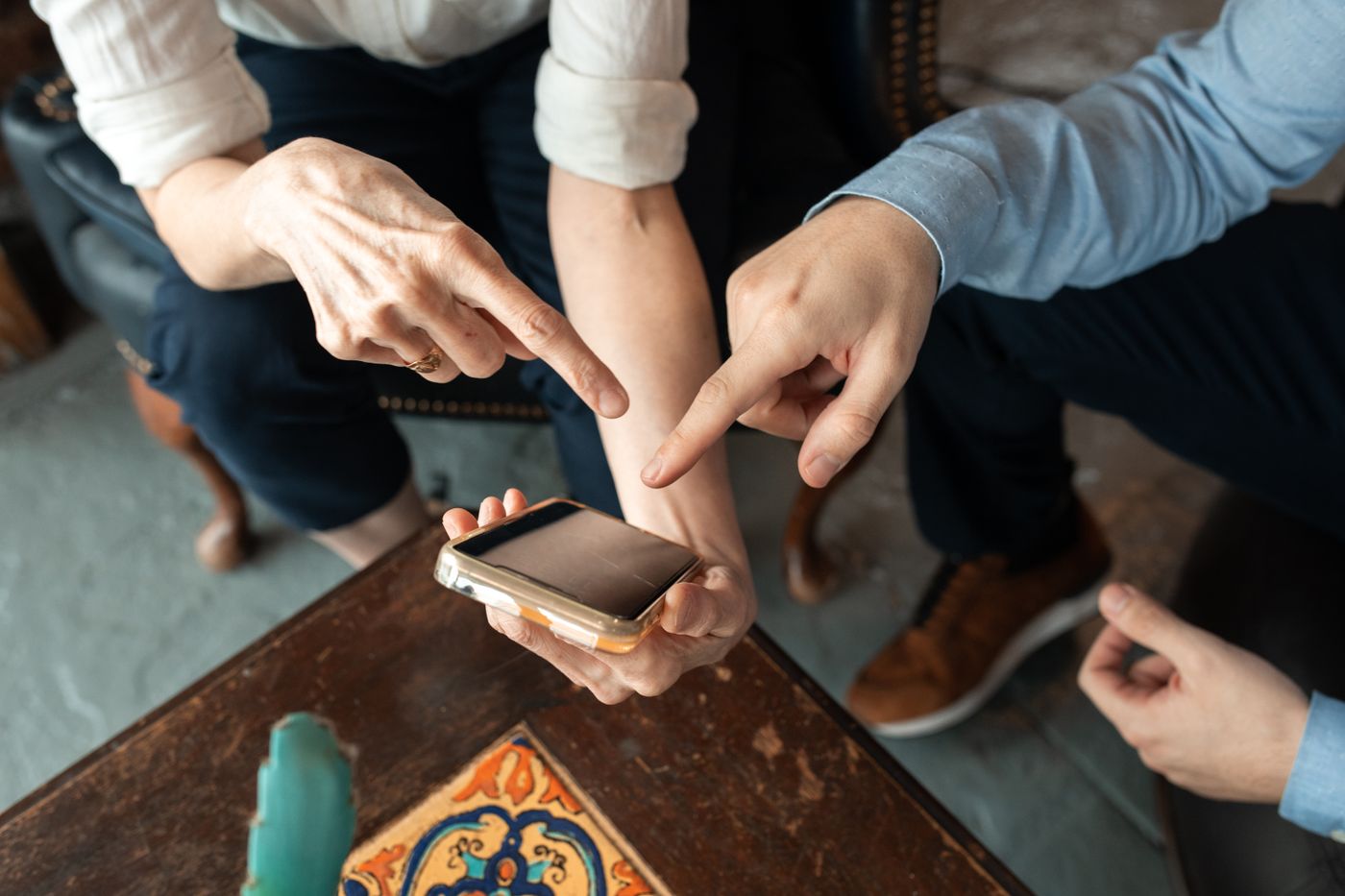
A short album solves a different problem from a well-organized library. It is a sequence made for one person and one conversation. It may have five pictures and need to exist for only an afternoon. Its first job is to put the relevant photographs in reach. Its second job is to give the viewer a starting point and an ending point, so neither of you needs to wander through unrelated images. A normal album is a presentation aid. Keep your own control of the device if the person should see only those pictures, since a regular album view may still let someone navigate elsewhere.
Decide what the pictures need to establish
Write down the question the viewer has in ordinary words. “How did it fit?” invites a picture of the empty space, a view of the arrangement, and a shot showing the edge that seemed too narrow. “Which of these two finishes looks better?” needs two comparable photographs and a way to tell which one is which. “What happened on the trip?” could use a few scenes in an order that makes sense, rather than every sideways view from a moving vehicle.
Choose the first frame for orientation. A wide view that includes a recognizable landmark may be more useful than the most attractive crop. A street scene can tell a person where the next close-up was taken. A view of the full shelf can show where the joint or cable path sits. A viewer who knows the whole scene can make sense of details later without having to ask which corner they are looking at.
Choose a deliberate last frame too. An after picture, the final comparison, or a single overview can provide a natural place to return the phone to a resting position. If another twenty pictures follow the last useful one, a viewer has to decide whether the conversation is over by swiping through them. Give them a short sequence instead. It is easier to expand later, when somebody asks a real question, than to interrupt a flood of pictures to recover the point of the story.
Collect one frame per purpose
Gather candidate pictures into an ordinary album, folder, or another supported selection in your photo app. Use the controls you already trust and make sure you are creating a personal album if the task is just to show it in person. A shared album or link can have a different audience and a different lifecycle. Google's Photos documentation describes creating and editing an album and shows which controls affect its contents. The location of similar controls varies among apps and operating systems.
Review near duplicates side by side. Keep the one that makes the needed feature easiest to see. A picture can be sharp and still have a hand covering the critical part. A slightly untidy frame with the feature visible can be the better explanation. If two frames matter because they show a change, keep both and arrange them as a pair when the app supports ordering. If the app only presents them by date, learn how it sorts before the conversation or walk through them yourself.
Check what you can safely display without explanation. A taken-for-granted detail in the background can be recognizable to someone else. You may see a photo of a bookshelf, while a guest notices the name on a package or the reflection of a second screen. Inspect the borders and reflections on the largest display you have handy. If you make an edited version, keep the original where that matters and confirm which version was added. Edits in a photo library can be reversible, and the visible result is what you need to verify before handing the device or a copy to somebody.
Practice the walk through before another person arrives
Open the album from the app's starting screen, rather than from the editing view you last used. Note the title, then open the first image and swipe through the sequence. Check actual ordering and confirm any last-minute removals. See whether a large picture is available offline if you expect to be somewhere without a reliable connection. An album entry may show a cached thumbnail while the full image still needs to load. Try the first and last views under the conditions you expect to use, where doing so makes sense.
Check portrait and landscape if the pictures mix both. A viewer may naturally rotate the phone to fill more of the screen. A rotation can reveal extra interface controls or change how much of the frame appears. For a close detail, practice returning from a zoomed view to a normal view before moving to the next picture. A fast zoom can be disorienting when both people are trying to see a small display. A verbal cue such as “look at the right side below the edge” makes the next motion easier to follow.
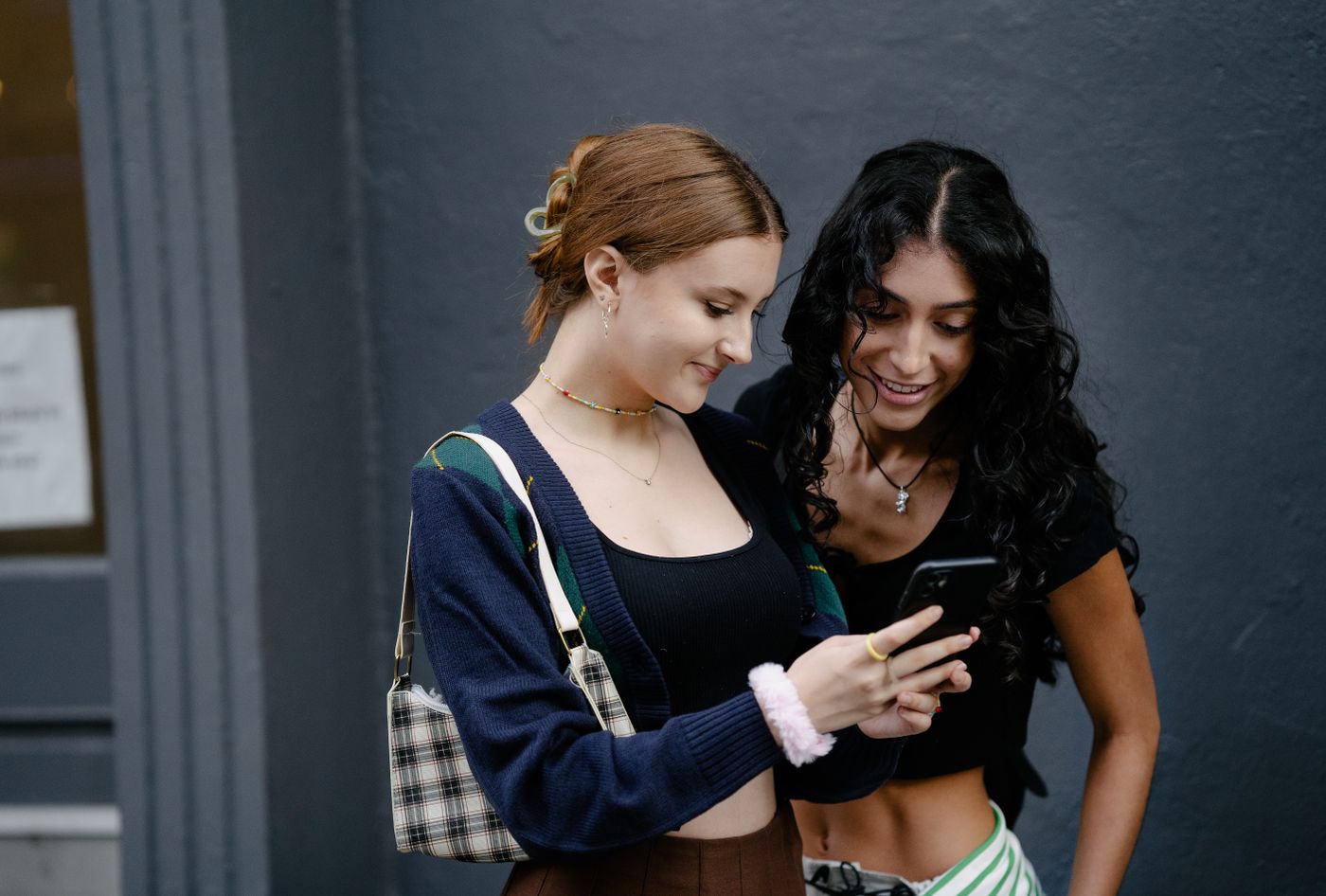
Think about how you will show the sequence. Holding the phone and controlling the swipes works well if you need to explain the order or keep the rest of the device private. If you are comfortable letting someone hold it, guide them to the first frame and agree on the ending. Any supported accessibility setting or limited-access mode you intend to use should be tested before handing over the device. A normal album, a crop, or a presentation mode by itself should not be treated as a guarantee that another user cannot see other interface areas.
Let the phone stay quiet without missing what matters
A banner can appear at exactly the moment both people are paying attention to the display. Decide whether you want to temporarily reduce ordinary notification previews using the device controls you understand. Verify how the chosen mode handles important calls or alerts before relying on it. If an important notification must still be available, or if you would rather leave settings as they are, keeping the phone in your own hands is a straightforward option. The device owner can pause the sequence whenever the screen contains something they did not intend to show.
Treat an incidental thumbnail as something to avoid rather than something to explain. Start inside the album and close it yourself afterward. If you discover a problem during practice, the solution may be to remove a photo from that selection, prepare a safer crop, or leave one detail out of the conversation. Before removing anything, read the app's command closely. Removing an item from an album and deleting the underlying item from a library can be different actions. The app's wording and its confirmation screen should tell you which one you have selected.
Personal preferences vary. On one occasion a person may be comfortable passing a phone to a friend. On another, a work device or client project may need more deliberate handling. Decide based on the pictures, the person, and the device. A carefully chosen picture sequence helps in both situations because it reduces the amount of navigation needed to talk about the same thing.
Treat a later copy as a new decision
When someone asks for a picture, identify the specific image they need. If the viewer wanted to know how the shelf fits, you might send the one useful corner instead of making the whole project album accessible. Check the recipients and any link or collaboration settings before sending. A link can be forwarded, and a copy made by someone else can remain after you remove the link or album. Review the platform’s sharing options for the actual delivery method you intend to use.
When a file is going to leave your device, examine what image details and metadata it may contain. Apple documents an option to turn off location when sharing from Photos. Google documents how certain photo locations behave when sharing through Google Photos and distinguishes that behavior from transfers outside its own service. The selected method matters. Look for the settings that apply to the outgoing copy, and verify the result when it matters. A recognizable building or sign can expose a location even if the coordinates are absent.
After the conversation, keep the sequence if it still has a purpose. You can also simply leave the photos in their original library and retire the temporary selection using the supported album command. The useful test takes place earlier. The person beside you should be able to see the opening view, understand the detail they asked about, and stop at the ending without showing you a photograph you never intended to discuss.