Give Your Home Network a Restart Map
Label the devices that bring the connection into your home, and practice recognizing what has recovered before restarting anything else.
In this article
The power returns and the lights come back throughout the house. A laptop can see the name of the wireless network but still cannot open a page. Someone unplugs the box on the bookshelf, someone else restarts the laptop, and the small device where the internet line enters the building is left entirely alone. By the time the connection returns, nobody knows whether it was waiting on the provider or whether any of those actions helped.
When several network devices come up together, waiting and knowing where to look can be more useful than restarting them all. A simple map helps identify the boxes, their ordinary status indicators, and the order in which a symptom can be checked. Its main advantage is that another person can use it while you are out. Make it during a quiet period, using existing connections and the provider's instructions. You can learn most of what matters without creating an artificial outage.
Identify which boxes do which jobs
Start at your own equipment and look for the point where the outside connection is handed to the home network. Depending on the service, there may be a provider device, a modem, an optical network terminal, or a combined gateway. It may be near a utility entry, or the provider may have installed a single device with multiple purposes. Do not open equipment, remove covers, or handle delicate provider connections to find out. Read the labels and use the service information you were given. If the handoff is unclear, ask the provider to identify the part it manages.
Identify the equipment that creates the network you use inside the home. A router might also provide Wi-Fi. A separate access point or mesh unit may extend coverage from another room. An Ethernet switch may add ports to which devices are connected. These roles can be combined, and two boxes that look alike may have different jobs. Give each device a name based on its purpose and ordinary location, such as “provider box near entry” and “main Wi-Fi in study.” A word that any person in the house can read is more useful than a number that only makes sense to the installer.
Use a simple diagram. Show the outside line, then the first networking device, and then the parts relevant to daily use. You do not need to map every cable on the first pass. A few arrows and recognizable names can establish which boxes depend on the one before them. Mark equipment the provider controls and parts that must not be disturbed without guidance. Keep access credentials out of the diagram. A connection map is useful because it identifies the equipment, and it does not need to grant someone administrative access.
Record healthy behavior while the network works
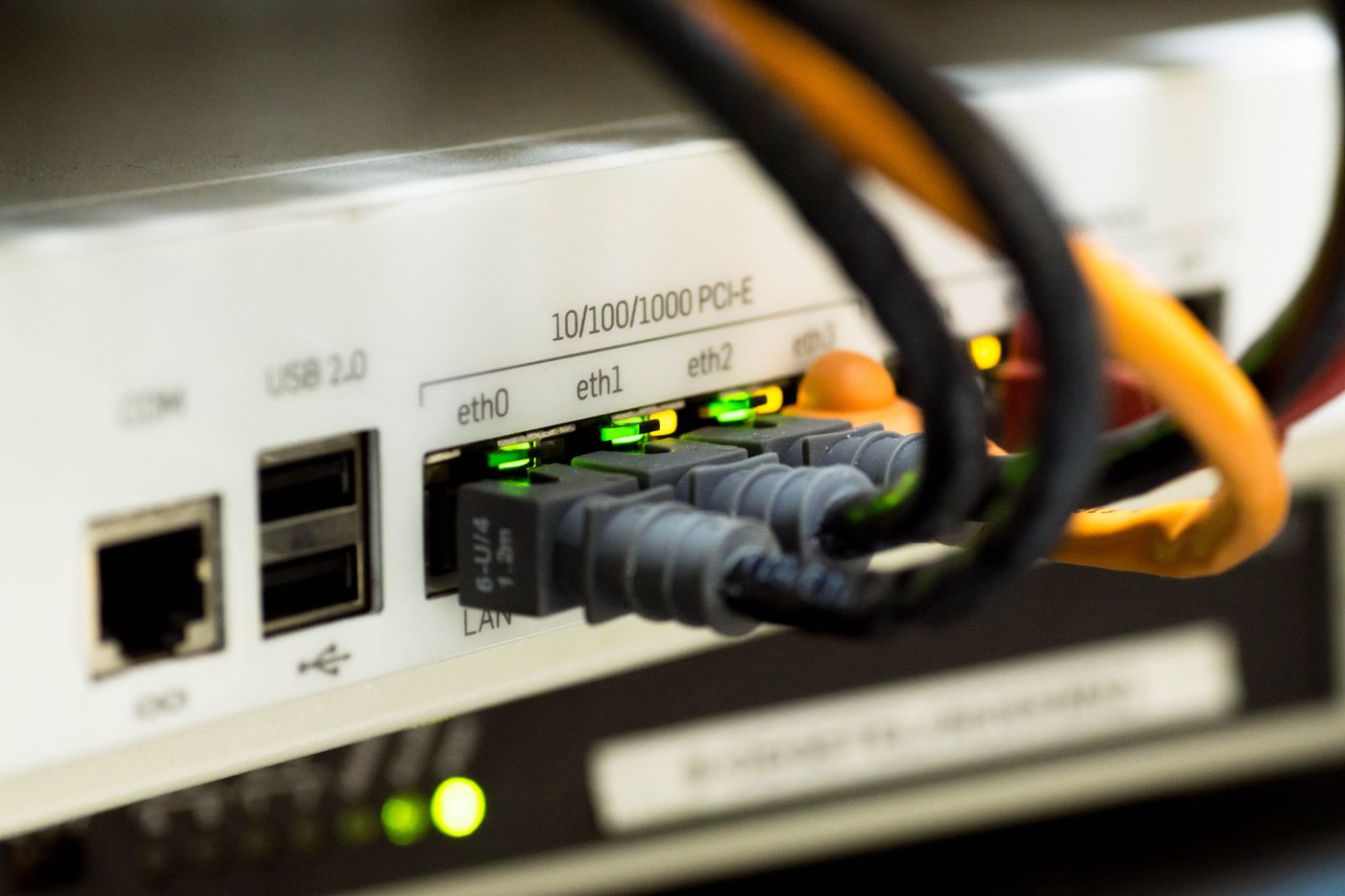
Look at each device's ordinary status indicators while the connection is healthy. Write down what is visible and say which device is producing it. A white light, a blinking indicator, and a steady green link light can mean different things on different products. Refer to the appropriate manual or provider instructions before interpreting them. The color somebody remembers from another router is not a specification for yours. If the equipment normally hides its indicators or you cannot see them without moving it, note another ordinary way to verify its state.
Choose a small separate check for each layer. Seeing the wireless network tells you that some equipment is advertising it. Joining and reaching a local device you own tells you something else. Loading a known ordinary website or performing an approved internet connection check tells you something about the service beyond your home. These observations can differ. A local media server may remain usable when the provider is unavailable, while a browser page already open may appear usable because its contents were saved previously.
If you have a wired device that can serve as a comparison, note where it is and what it ordinarily uses. Trying its normal connection can help distinguish a problem confined to wireless coverage from one shared by several parts of the network. There is no need to change firewall protections or disconnect other people to perform this check. Use ordinary devices and services you are authorized to use. Keep the checks few enough that somebody can remember their order without a script.
Use the manufacturer's ordinary recovery sequence
Review what the provider or equipment documentation says to expect after power returns. Some devices need time to reestablish the outside link, and another box already broadcasting wireless may still be waiting for it. Software updates or line checks can lengthen that recovery. Avoid assuming a visible Wi-Fi signal means the whole connection is ready. A note that says to observe a particular indicator or allow the documented startup interval is clearer than a vague instruction to keep restarting.
Where the provider recommends an ordinary restart, follow the procedure for your installation, using supported controls and respecting the people and equipment affected. If the device supports a reset control, distinguish a normal restart from a factory reset. A factory reset can erase settings and is not an ordinary response to a short interruption. Do not touch power connections that appear damaged, unsafe, or physically difficult to reach. If the only uncertain equipment belongs to the provider, turn to its support process.
Agree on a stopping point. If the first device never returns to its documented normal state, restarting equipment farther downstream is unlikely to establish whether the outside connection works. Check whether the provider reports a service incident using an independent supported connection where you can. If the provider asks for observations, give the model, when the issue began, and what each relevant status indicator showed. Private account details belong only in an approved support conversation.
Observe recovery after a genuine interruption
When an ordinary interruption happens, check whether power is actually restored safely and whether the equipment has had time to come up normally. Do not use networking equipment as an indication that an electrical supply is safe. If critical or safety-related equipment depends on the connection, use its established procedures. A household restart map is for ordinary connectivity, and it should not replace the expectations set for anything that must remain available.
Start with the device nearest the service handoff and work outward through the known map. Check which boxes have their usual status, then test the local connection and an outside service as appropriate. Write down the first point where the result differs from normal. If the trouble is confined to a satellite access point, compare with the main one before making a change. If several independent devices fail in the same way while the provider box reports an issue, the map has given you a more focused support question.
As the equipment recovers, verify the task you actually need rather than relying on a single light. That might be an ordinary webpage, a call, or access to a printer you already use. If Wi-Fi works but a wired device does not, verify which part of the map it is connected to and check its ordinary connection state. There is value in letting changes settle for a short interval rather than restarting healthy equipment while another part is returning. You can learn which step resolved an issue only when you leave yourself time to observe it.
Leave the map where the next person can use it
Keep a copy in a place that remains accessible when the internet is down. Paper near a shared desk or a local note on a device can work. Include the location and job of each box, the order of checks, and the appropriate provider contact or reference if you have one. Use large enough names that a person can distinguish two boxes without leaning into cables. Make any provider-only boundary explicit so there is no ambiguity about when to ask for help.
Update the map after an equipment replacement or move. A new service may put the outside connection in another room, or a newer gateway may combine functions that used to sit in two boxes. Verify the status guidance with the new device's documentation before copying your old note. Ask a household member to show you the first device they would check and to explain what seeing a wireless network would tell them. If their answer differs from what you intended, the repair is to the map while everything still works.
The next time the lights return, the first helpful question is which part has recovered. A short diagram and a few healthy observations give you a way to answer it without guessing what a light means, resetting a device you do not manage, or waiting for the one person who remembers where the service cable goes.
If you make a support note during a real interruption, distinguish the time the room regained power from the time you saw the connection work. Those events may be several minutes apart. Keep the approximate times with the observations if you need to discuss repeated outages. A clear chronology is often more useful than trying to recreate every step as you remember it later.